
Compliance Searching enables you to find applicants based on their compliance status against Applicant Compliance, a Job’s compliance requirement or Auto-Generated compliance. For more details on how to set up these compliance items please see these articles: Compliance | Applicant Compliance, Compliance | Jobs & Placements and Compliance | Auto Generated Compliance.
When searching compliance you can search on the following values:
- N/A - Compliance searching will not be enabled.
- Compliant - Only applicants that are compliant based on the criteria chosen will be included in the results.
- Not compliant - Only applicants that are not compliant based on the criteria chosen will be included in the results.
- Any - All applicants, regardless of their compliant status will be returned (providing they meet any other search criteria). This is similar to ‘N/A’ but with this option, the results will include details of whether the applicant is compliant or not (see below).
When an option other than N/A is selected the compliance you want to search on can be chosen.
For Applicant compliance this will need to be enabled in the itris Management Utility and can reference both Global and Job Function Auto Generated Compliance. See the article Compliance | Applicant Compliance for more details.
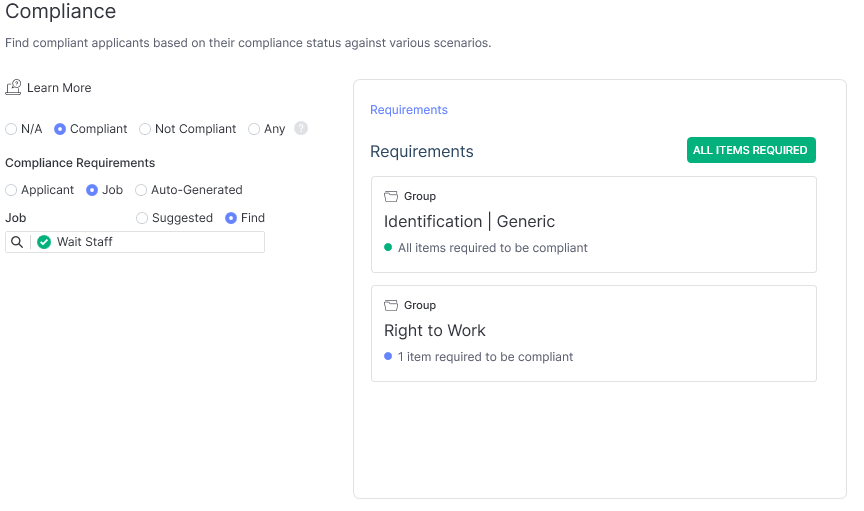
With Job Compliance this will reference compliance set against the selected Job, and with Auto-Generated compliance it will reference the relevant compliance based on the compliance criteria set.
Once a Job or Auto-Generated Compliance is selected it will display in a Read-Only format, but still allowing you to navigate through any layers of that compliance.
Applicant Compliance
This option will only be available if Applicant Compliance is enabled in the itris Management Utility. Please see the article Settings | General Settings for further details.
Applicant compliance will check each applicant, that matches any other criteria searched, to determine their compliance status as per your Applicant Compliance settings (e.g. those set in Auto-Generated Compliance).
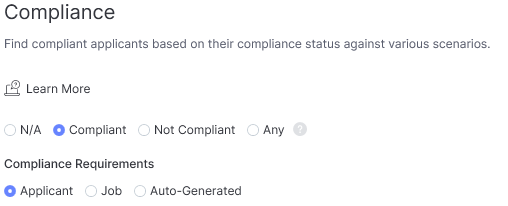
Job Compliance
With Job Compliance searching you have the option to choose from your Suggested list of jobs (e.g. those procured by you or a user in your team and those to which you are an Owner Assignee) or via the Find Control.
Auto-Generated Compliance
When selecting to use Auto-Generated compliance requirements there are a number of other fields to complete that will determine which Auto-Generated Compliance templates are searched against: Charge type (required), Job Function, Industry and Business Type.
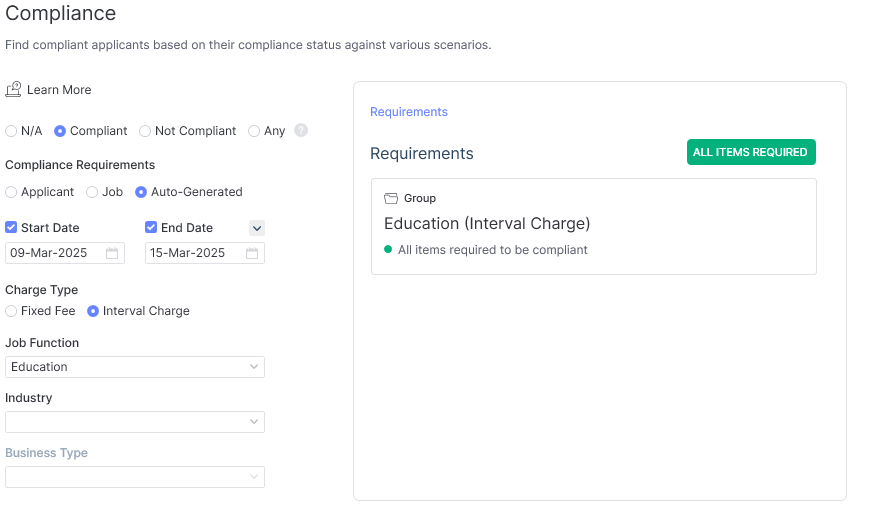
Dates can also be selected to determine if the applicant will be compliant for that time period (e.g. the period of the job). If Start Date is left blank then by default this will apply today’s date, and if End Date is left blank this will use 30 days from today’s date.
Date criteria here will affect Date Range Custom Fields with an ‘initial/rolling coverage’ value and References that have a requirement of ‘Continuous for X months’.
Date Range Custom Field Examples
For the initial/rolling coverage, here are some examples as to how this would be expected to work for a date range compliance item that required 30 days of initial/rolling coverage:
- If the dates in the search were left blank, the custom field would need to be valid from today to today + 30 days.
- If the start date in the search were set to next Wednesday, the custom field would need to be valid from next Wednesday to next Wednesday + 30 days.
- If the start date in the search were set to last Wednesday, the custom field would need to be valid from today to today + 30 days (as it’s “rolling”).
- If the end date were set to next Wednesday, the custom field would need to be valid from today to next Wednesday (the end date cuts it off).
Continuous References
For Continuous references, when they are added to a job an ‘Up To’ date that continuous references are expected ‘up to’ is added. When searching on compliance this will default to ‘Today’s Date’, therefore assuming an ‘Up To’ date of today.